
How to use SmenaFon
SmenaFon transfers data between phones over your local Wi-Fi network — no cloud storage, no USB cable, nothing installed on iPhone. Works for phone retail stores and home use. Official website: smenafon.ru.
Quick overview (1 min)
About the service
SmenaFon helps transfer photos, videos, contacts and files from one smartphone to another over a local Wi-Fi network. Files are never uploaded to external cloud servers — everything stays within your local network between the phones and your Windows PC (or Android receiver).
- Store with a PC. Install SmenaFon Agent on a Windows PC. It hosts a local transfer server, shows QR codes to the customer, and generates a PDF receipt after the transfer.
- Without a PC. Install the SmenaFon Receiver app on the new Android phone. It acts as the receiving point and shows a QR code. No router needed — just enable a mobile hotspot on one phone and connect the other.
Installation & activation (for stores)
Do this once before the first transfer at your store.
-
Register and choose a plan
Go to your account dashboard at smenafon.ru, create a store account and choose a plan: SOLO/SALON/NETWORK subscription or Solo Pay (per transfer). After registration, generate a license key.
-
Download and install the agent on your PC
Go to the downloads page or use the direct link SmenaFon-Agent-Setup.msi. Run the installer — the app appears in Start menu as SmenaFon.
-
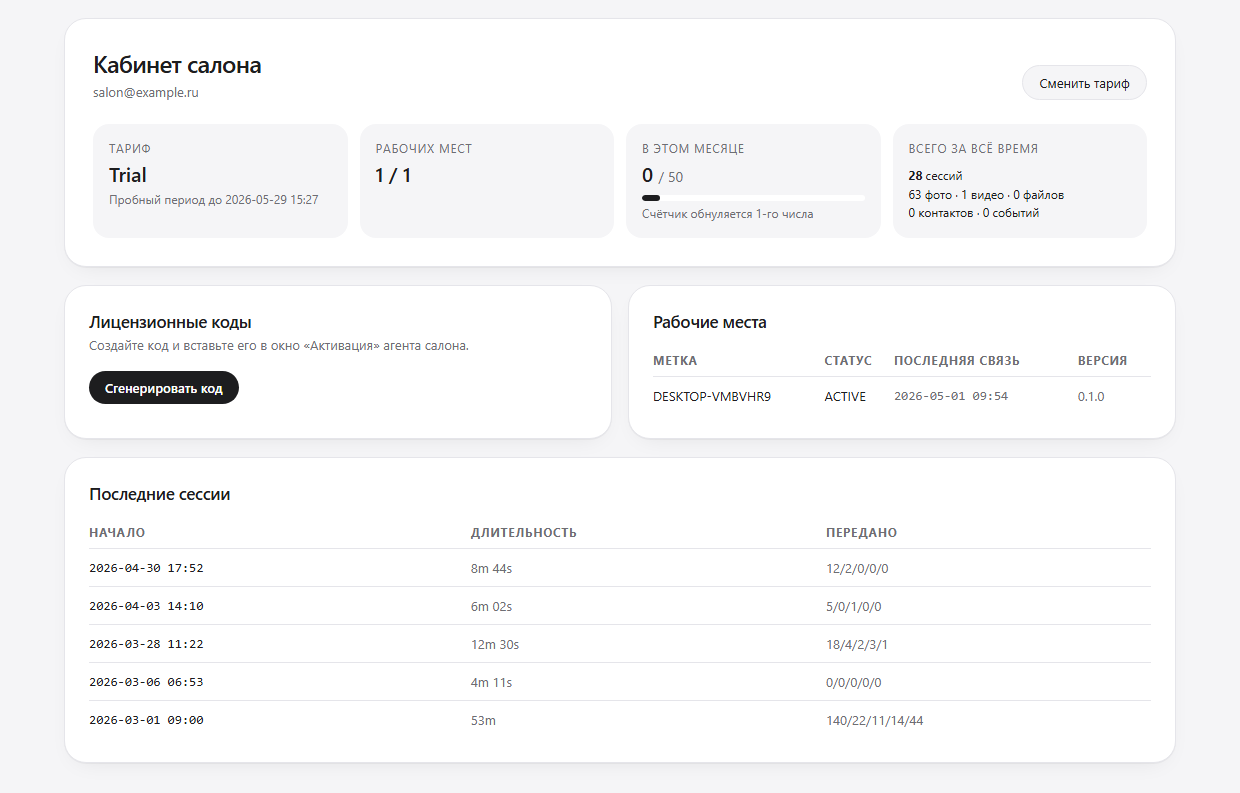
Generate a license key in the dashboard
In the License Keys section, click Generate key and copy the key. One key activates one PC.
-
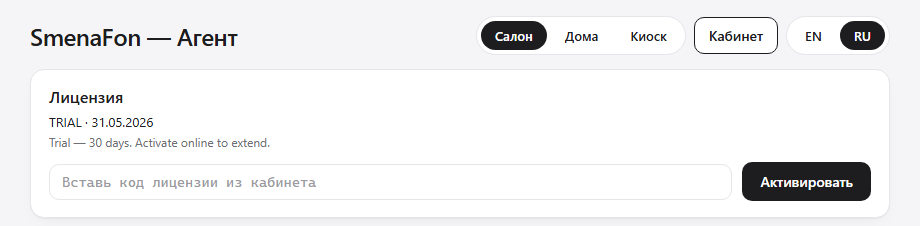
Enter the key in the desktop agent
Launch SmenaFon on your PC, paste the key into the License card and click Activate.
Transfer via PC in a store
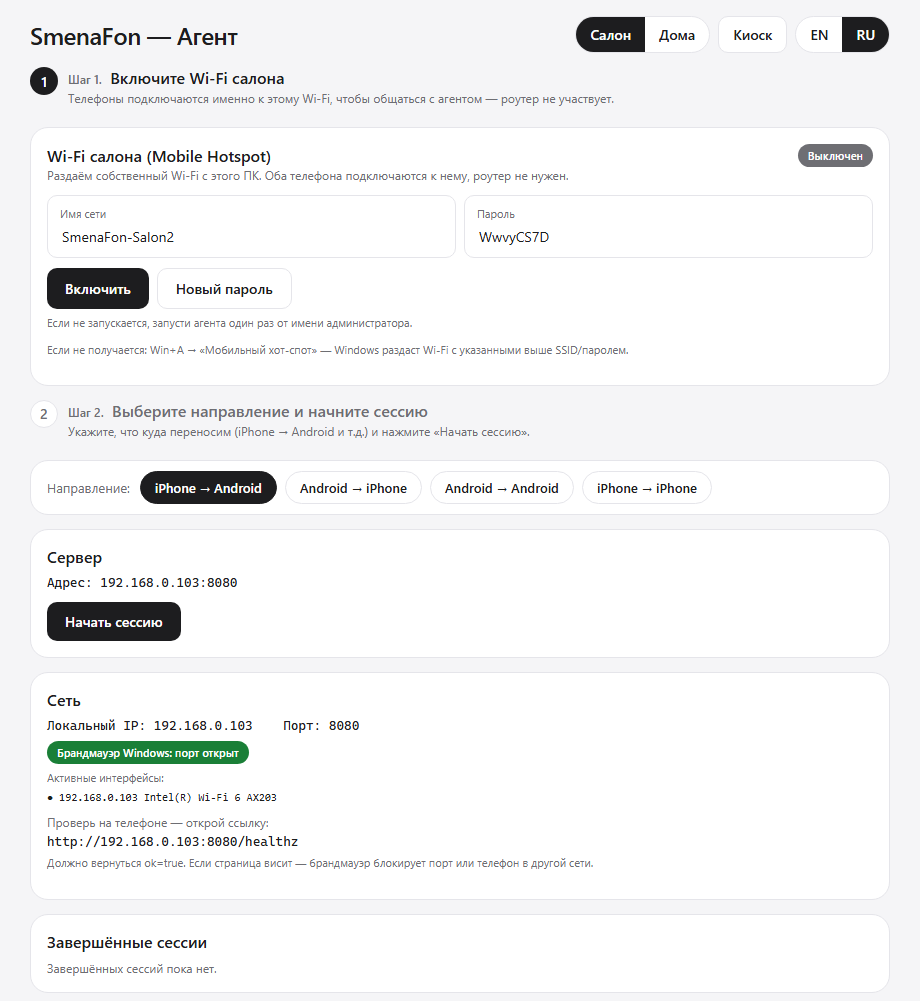
Desktop window (Store mode)
- Select the Store tab, verify the network and click Enable.
- Choose the transfer direction (e.g. iPhone → Android) and click Start session.
- Show the customer the two QR codes — one for sending, one for receiving.
- When done, click End session to generate the PDF receipt.
Kiosk mode
Best when you want to show the customer large QR codes on a dedicated display.
-
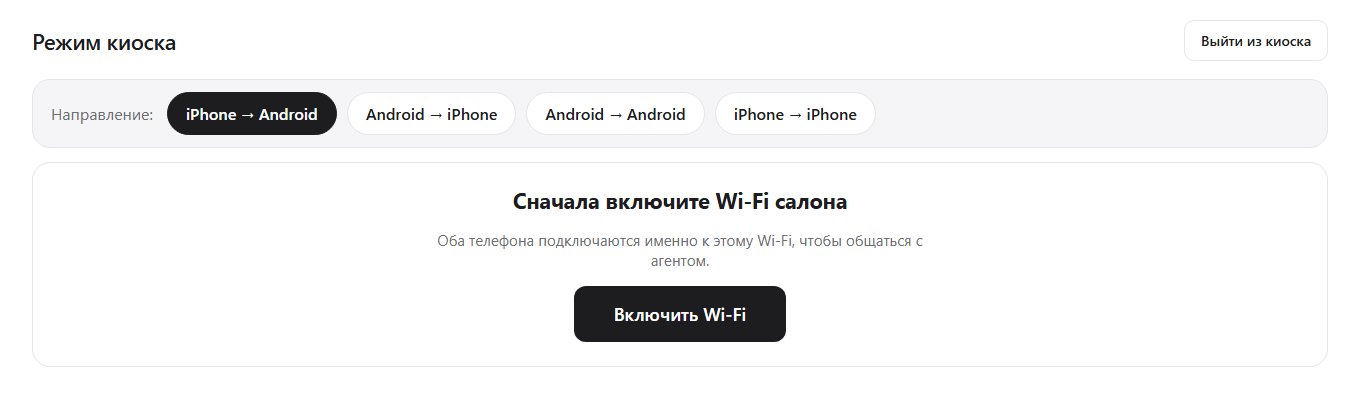
Enable store Wi-Fi
The customer connects their phones by scanning the Wi-Fi QR code.
-
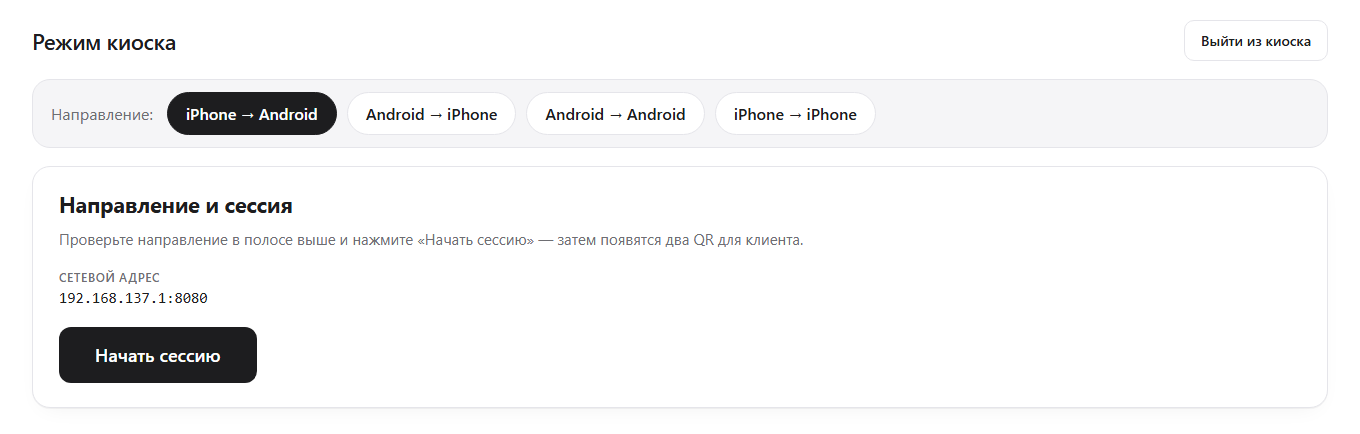
Choose direction and start session
Select the transfer direction and click Start session to show the transfer QR codes.
-
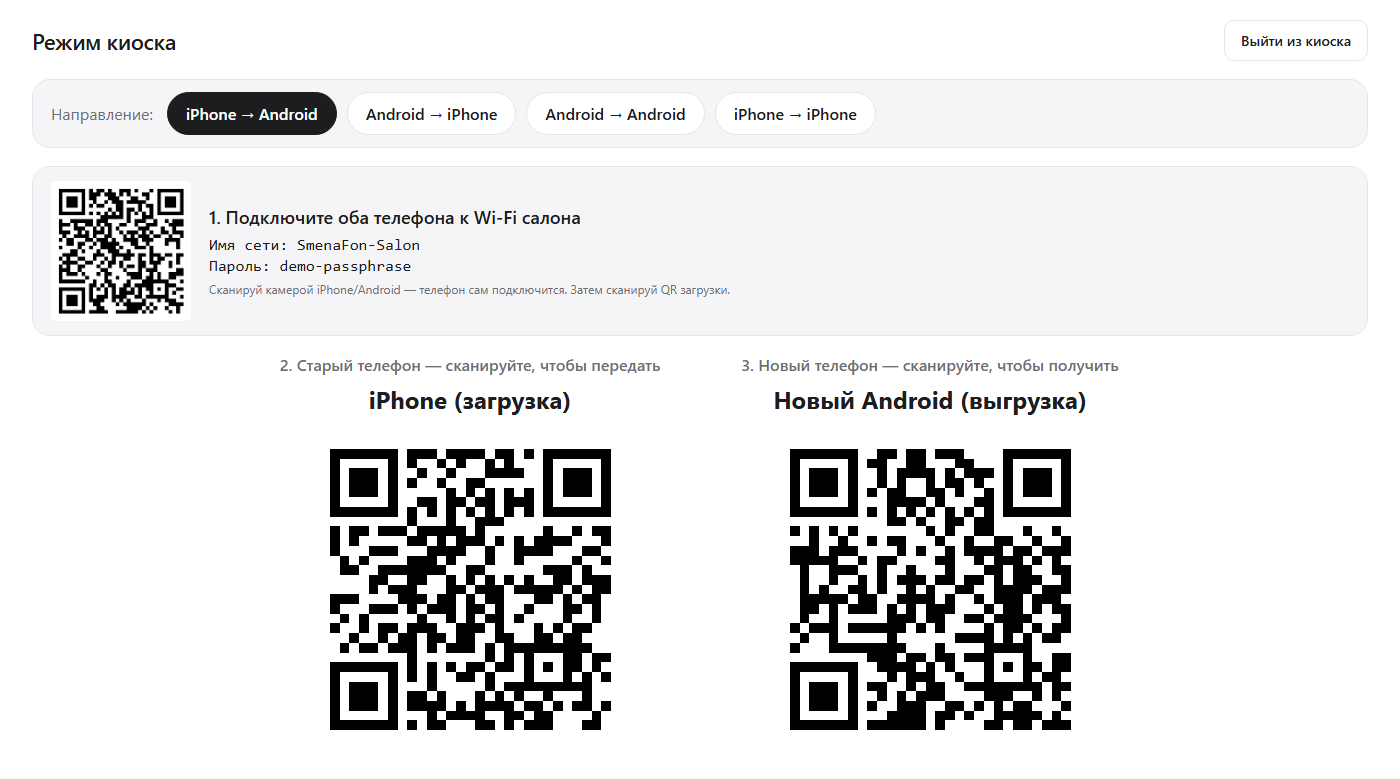
Show the customer both QR codes
Three blocks appear: Wi-Fi connection, upload QR for the old phone, download QR for the new phone.
-
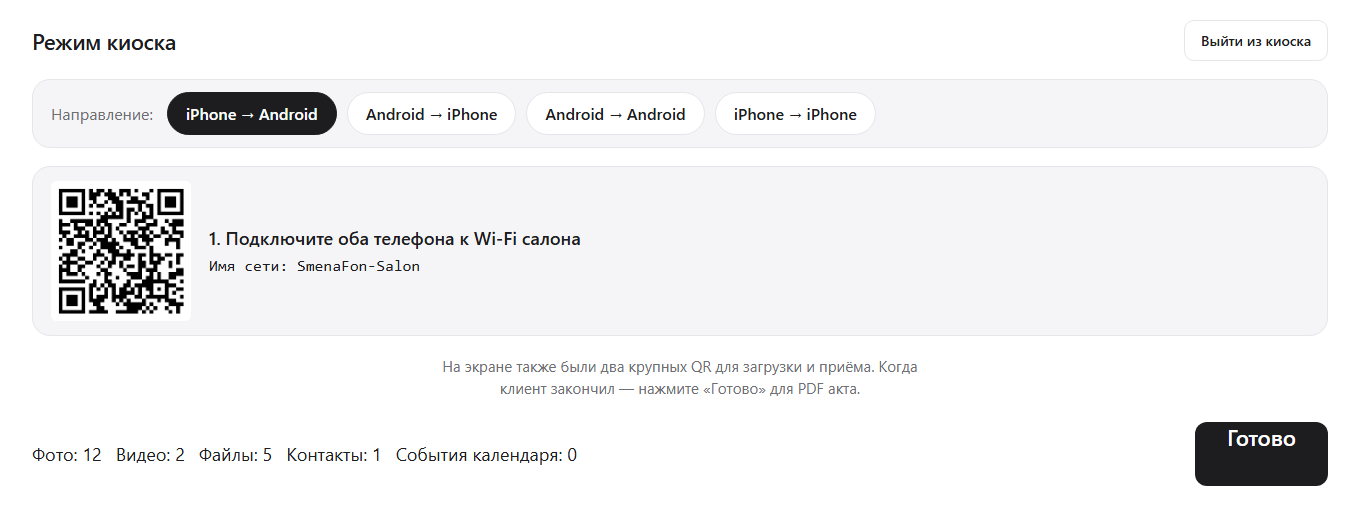
Finish and print receipt
Click Done to end the session and generate the PDF acceptance receipt.
What the customer does on their phones
After the staff has started the session and shown the QR codes:
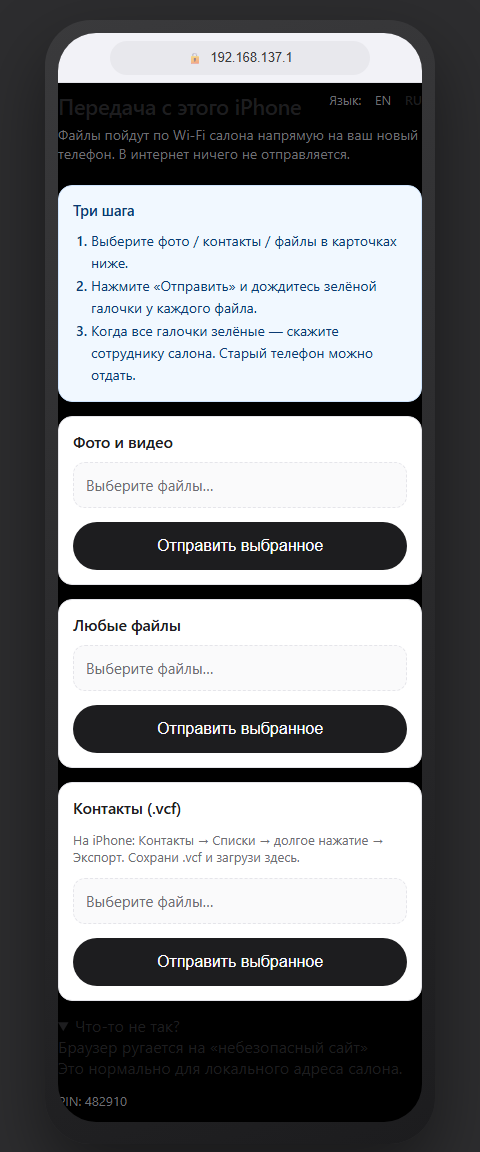
Old phone Sending
- Connect to the store Wi-Fi (by QR or manually).
- Scan the upload QR — a transfer page opens in the browser.
- Select photos, videos, contacts and tap Send.
- Wait for the green checkmark on each item.
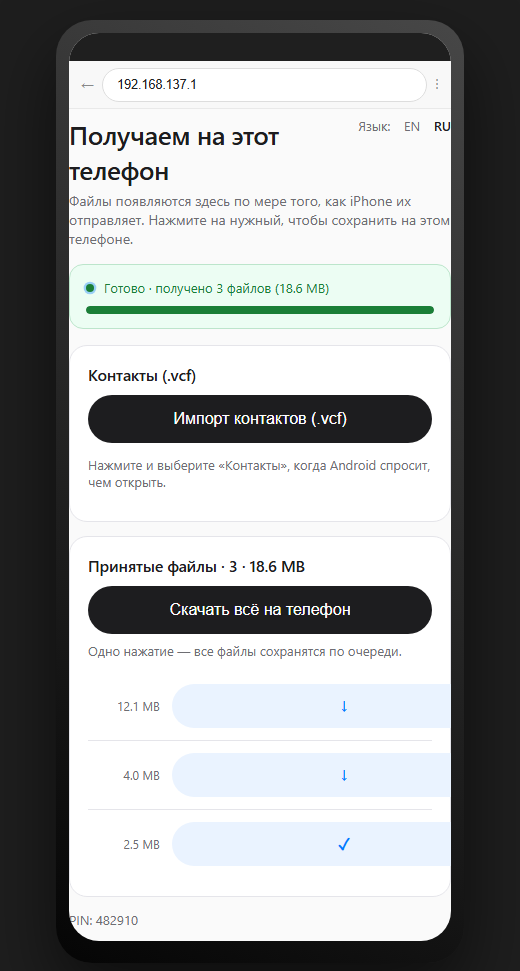
New phone Receiving
- Connect to the same Wi-Fi network.
- Scan the download QR.
- Tap Download all when files appear.
- Contacts import via a separate button in the browser.
Transfer without a PC
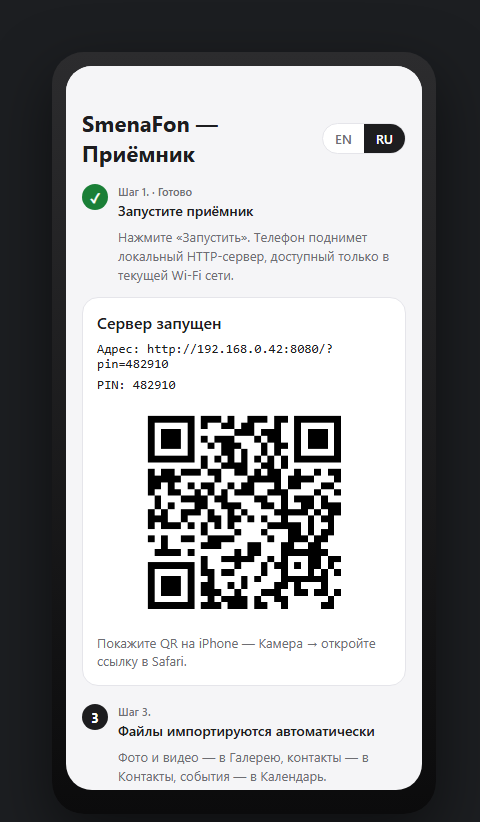
Install the SmenaFon Receiver APK on the new Android phone. Both phones must be on the same Wi-Fi. If there's no router, enable the mobile hotspot on one phone and connect the other to it.
- Launch the Receiver app on the new Android.
- Scan the QR code with the old iPhone in Safari.
- Select and send data from the iPhone browser page.
- Photos and videos go to the Gallery, contacts to the Contacts app.
Account dashboard
After signing in at smenafon.ru you'll see your plan and limits, active license keys, session statistics, and the Change plan button for billing.
Important notes
- If iCloud Photos is set to "Optimise storage", originals may not be on the device — download them to iPhone first.
- An active VPN or strict antivirus on the PC may block local connections — try disabling VPN and adding SmenaFon to exceptions.
- QR codes opened inside app-embedded browsers may not work — use Safari or Chrome directly.
- WhatsApp chats and SMS cannot be transferred via the web page due to platform restrictions.
- No router? Enable a mobile hotspot on one phone and connect the other — that's all you need.